Creator guide
Make a cosmetic
Orbit cosmetics are ordinary Blockbench models. If you can model in Blockbench, you can make one; no code, no resource packs.
Start from the template
- In game, press O to open the Cosmetic Manager and click Create.
- Orbit writes
orbit/templates/orbit_template.bbmodeland opens it in Blockbench. - Model inside the body part groups (below). The locked
REFERENCE_PLAYERbody shows where the player is; it is never drawn in game. - Save the finished model into the
orbitfolder itself (nottemplates), with textures embedded. - Click Reload in the manager, select your cosmetic and click Load.
Body parts
Put geometry inside groups with these exact names (capital letters). Each one follows that part of the player, including when they nod, swing their arms or sneak.
| Group | Follows | Pivot in Blockbench |
|---|---|---|
HEAD | Head: where the player looks | 0, 24, 0 |
BODY | Torso | 0, 24, 0 |
RIGHT_ARM | Right arm | 5, 22, 0 |
LEFT_ARM | Left arm | -5, 22, 0 |
RIGHT_LEG | Right leg | 1.9, 12, 0 |
LEFT_LEG | Left leg | -1.9, 12, 0 |
| anything else | The player's position and body turn only | 0, 0, 0 (between the feet) |
Keep each group's origin on its pivot (the template already does) and what you see on the reference player in Blockbench is what you get in game. One pixel in Blockbench is one pixel on the player.
Not drawn in game: the REFERENCE_PLAYER group, anything with Export turned off, faces without a texture, locators and null objects.
Animations
Make animations in Blockbench's Animate tab as usual: rotation, position and scale keyframes with linear, step, smooth or bezier curves, and Molang expressions. Then select the cosmetic in the manager and click Animations.
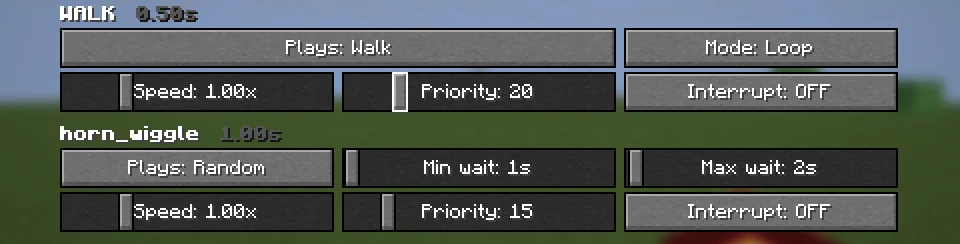
| Setting | What it does |
|---|---|
| Plays | Idle, Walk, Sprint, Jump, Fall, Sneak, Crouch, Swim, Fly, Always, Random or Never |
| Mode | Loop; Once (then back to rest); Hold (stay on the last frame) |
| Min / max wait | For Random: the pause between plays, picked at random in this range (up to 120 s) |
| Speed | 0.1× to 4× |
| Priority | When two animations move the same part, the higher one wins |
| Interrupt | While playing, pauses this cosmetic's lower-priority animations |
Name your animations IDLE, WALK, SPRINT, JUMP, FALL, SNEAK, CROUCH, SWIM, FLY or RANDOM (or animation.hat.walk, run, fidget and similar) and they are set up automatically.
Movement physics
In the Animations screen, Advanced makes parts react to movement: a cape that lifts when running, a tail that swings when turning, ears that bounce when jumping. It works with or without animations.
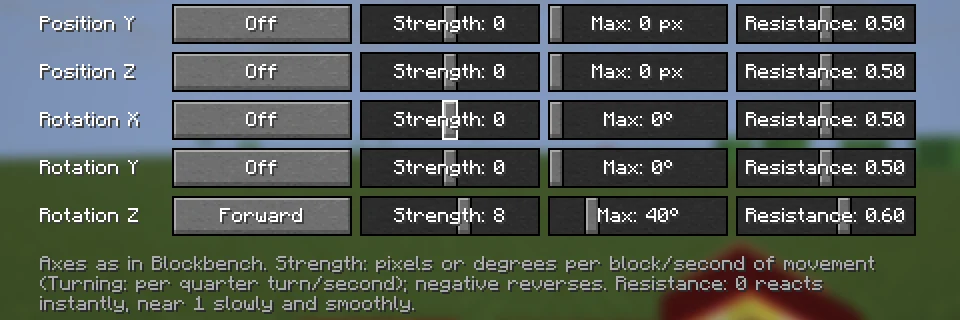
Click Add part…, choose a group from the tree of your model's parts, and set any of position X/Y/Z and rotation X/Y/Z (Blockbench axes):
| Setting | What it does |
|---|---|
| Moves with | Forward (backward is negative), Sideways, Vertical, Any speed or Turning |
| Strength | Pixels or degrees per block per second of movement; negative reverses it |
| Maximum | The furthest it can move, in pixels or degrees |
| Resistance | 0 reacts instantly; close to 1 reacts late and settles smoothly |
Up to 8 parts per cosmetic. A good start for a cape: rotation X, Forward, strength 8, maximum 40°, resistance 0.6.
Sharing your cosmetic
Your animation and physics settings are saved in a .json file with the same name as the model, for example top_hat.bbmodel and top_hat.json. Send both files and others get your cosmetic exactly as you set it up; dropping the model onto the manager brings the settings along.
Add your name and a description to that file; they show up in the manager:
{
  "orbitCosmetic": 1,
  "model": "top_hat.bbmodel",
  "name": "Top hat",
  "author": "Your name",
  "description": "A tall hat with a swinging brim.",
  "animations": { ... },
  "physics": { ... }
}
On a server, the cosmetics you wear are shared automatically with other Orbit players. You don't need to send files to anyone.
Limits
To keep everyone's game fast, models are checked before they are used. The default limits:
| File size | 2 MiB (1 MiB to share through Orbit Cloud) |
| Cubes and meshes | 1,024 |
| Faces | 6,144 |
| Groups | 256, nested up to 16 deep |
| Textures | 8, each up to 512 × 512 |
| Animations | 32 |
Servers can set lower limits, and can choose which body parts are allowed. The manager tells you which limit a model goes over.
Tips
- Embed textures when you save (in Blockbench's texture menu) so your model is one self-contained file.
- Fewer, bigger cubes are faster than many tiny ones. Hidden faces can have their texture removed.
- Slightly larger than the body (inflate 0.25–0.5) avoids flickering where the cosmetic touches the skin.
- Animated multi-frame textures, sounds and particles in animations aren't supported; the manager warns you.
- Want a starting point?
examples/orbit_demo.bbmodelin the repository has something on every body part.